Microsoft Windows 11 Home Activate and Installation Guide
The official release of Windows 11 Home delivers a modern, streamlined experience designed for everyday users. Whether you’re setting up a new PC or upgrading your current one, this guide will walk you through downloading, installing, and activating Windows 11 Home step by step.
Here’s how to start:
Step 1. Preparing your device.
To enjoy a smooth installation and the best Windows 11 Home experience, your PC needs to meet the following requirements. You can also check compatibility using Microsoft’s PC Health Check application.
- Processor: 1 GHz or faster, with 2 or more cores on a compatible 64‑bit processor or System on a Chip (SoC)
- Memory (RAM): 4 GB or greater
- Storage: 64 GB or larger drive (extra space may be needed for updates)
- System Firmware: UEFI, Secure Boot capable
- TPM: Trusted Platform Module version 2.0 (check your PC settings to enable if needed)
- Graphics: DirectX 12 compatible with WDDM 2.0 driver
- Display: High‑definition (720p) screen, larger than 9” diagonally, with 8‑bit color support
- Internet & Microsoft Account: Required for setup, updates, and access to key features. A Microsoft account is needed to sign in and personalize your experience.
Tip: If your device is running Windows 11 Home in S mode, switching out of S mode also requires internet connectivity. You can learn more about S mode on Microsoft’s support page.
Data backup reminder — Always back up important files before installation. While the process is typically seamless, safeguarding your data prevents potential loss. Once preparations are complete, you can move forward with downloading and installing Windows 11 Home.
If your device meets these requirements, you can proceed to the next steps in downloading Windows 11 Home.
Step 2. Download and Install Windows 11 Home
Start by downloading the ISO file in your preferred language.
· Select your language from the list (English, Deutsch, Français, etc.)
Click the download link to save the ISO file to your PC
| LANGUAGE | 64 BITS |
| DEUTSCH | Herunterladen |
| ENGLISH | Download |
| FRANÇAIS | Télécharger |
| ITALIANO | Scarica |
| ESPAÑOL | Download |
| NEDERLANDS | Downloaden |
| SVERIGE | Ladda ner |
Create installation media
You’ll need a bootable device to install Windows.
· Burn the ISO file to a DVD or
· Save it to a USB drive (recommended for faster setup) Boot from media
Boot from Media
Restart your computer using the DVD or USB drive.
· Insert the DVD/USB into your PC
· Restart and choose to boot from the installation media
· The Windows setup screen will appear
Follow On‑Screen Instructions
The installer will guide you step by step.
· Choose your language, region, and keyboard layout
· Select installation type (upgrade or custom)
· Follow prompts until installation completes
Step 3. Activating Windows 11 Home
After installing Windows 11 Home, you’ll need to activate it with your product key. This unlocks all features and ensures your copy is genuine. Follow these simple steps:
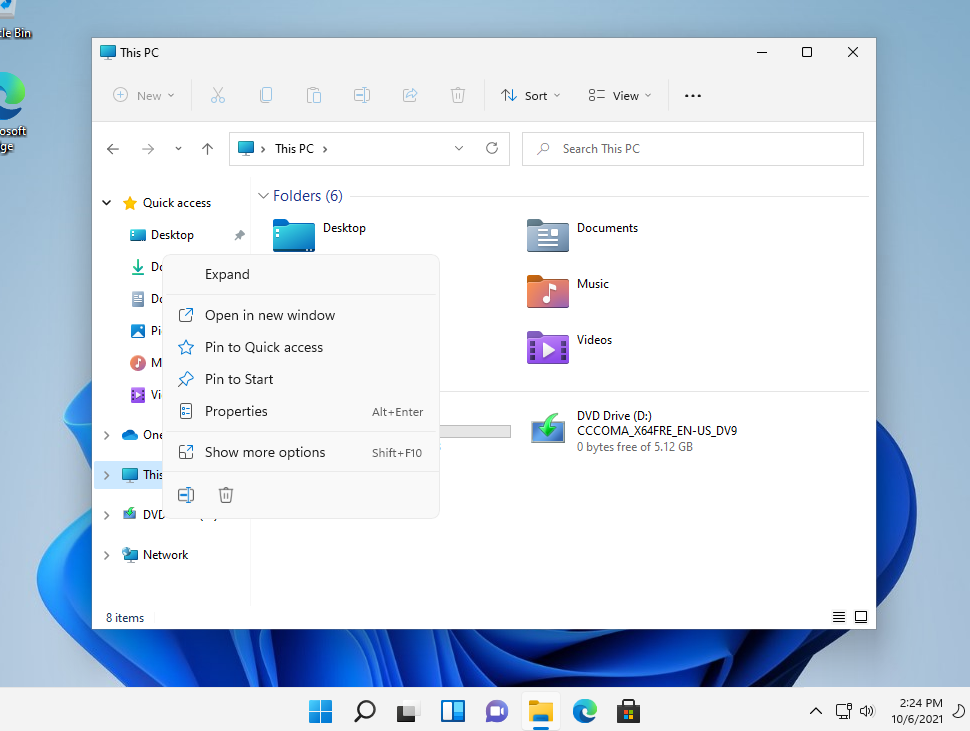
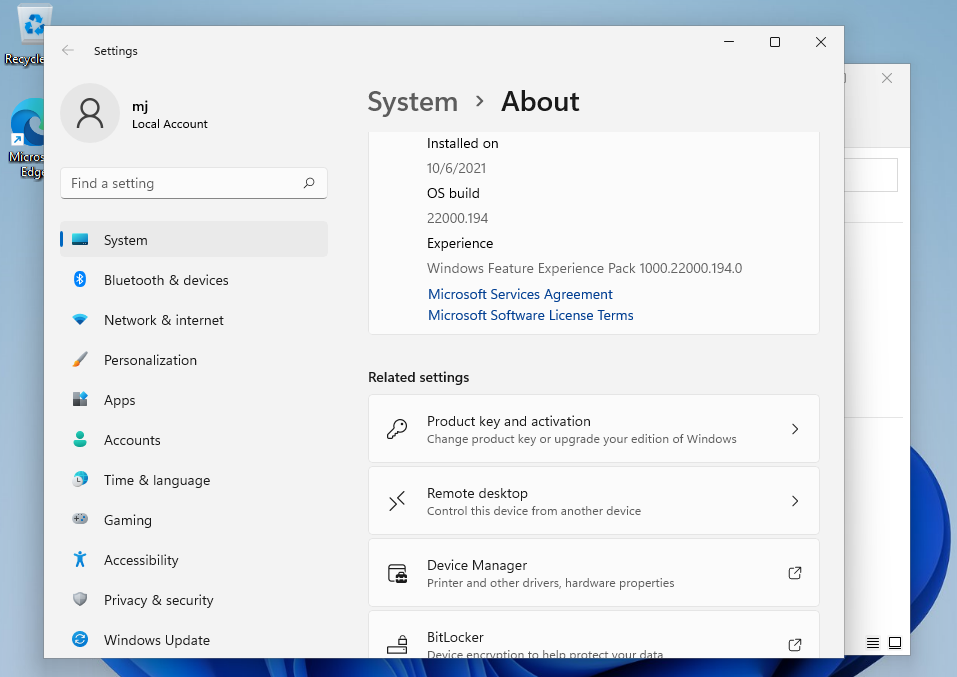
1. Open System Properties
This is where you’ll manage your Windows activation.
Right‑click This PC → select Properties
· Locate the System window
· Scroll down to find the activation section
2. Access Activation Settings
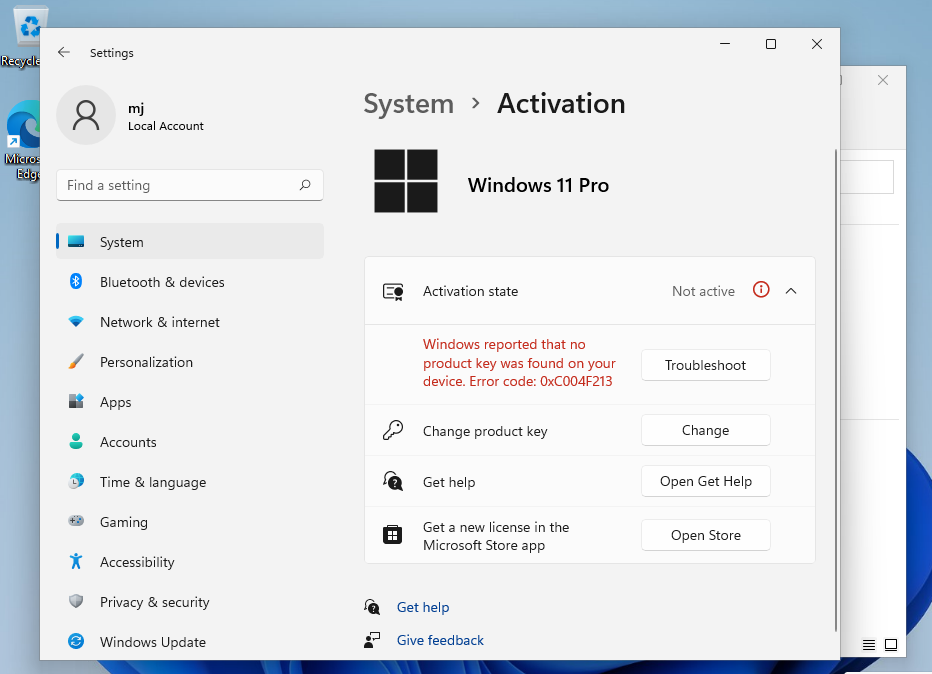
The activation menu lets you enter your product key.
In the System window, click Activate Windows
· Look for the activation option
· Click to open the activation wizard
3. Enter Your Product Key
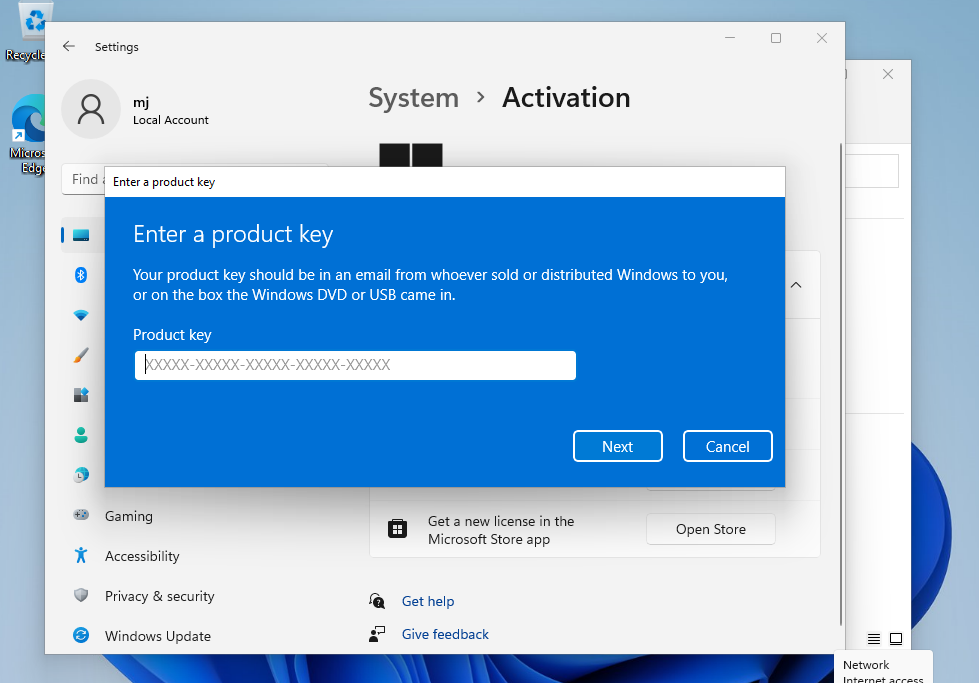
Entering your 25‑character key completes the activation.
· Type in your Windows 11 Home product key
· Click Next and follow the prompts
· Windows will confirm activation once complete
Other Activation Options:
Activate Your Password by Phone:
To proceed, select "Show other activation methods" → "Next" → "Activate automatically during Microsoft Windows activation using the phone system."
Choose your location and call one of the displayed numbers.
Activating through Microsoft’s Central Activation Center:
- If calling from the UK, dial: 900 150 889
- If the activation does not succeed immediately, try 2 or 3 times, as the system may not recognize the input right away.
Microsoft has gradually discontinued support for certain older products, making telephone activation no longer available. If you encounter any issues or have questions during the installation process, please reach out to our 24/7 customer support for assistance.